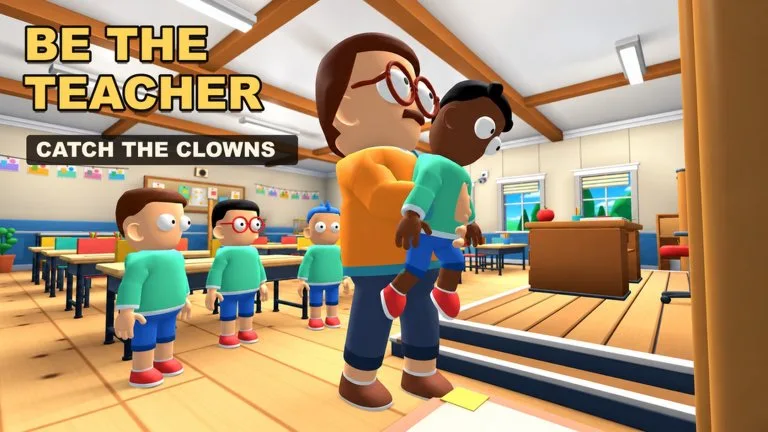
Class Clowns does not publish a separate keybind card. Play it with the Roblox controls you already use, and follow the interact prompt on screen for snacks, pranks, chalk, catches, and hook frees. If a patch renames a button, the live prompt wins over this page.
Movement guides expect
On keyboard and mouse, public control notes use the usual Roblox set: WASD or the arrow keys to move, Space to jump, and the mouse to look. Scroll zoom and shift lock follow your Roblox client settings, not a Class Clowns menu this wiki can quote. Gamepad uses the normal move stick and face buttons.
Students want a camera that still sees the Teacher in the corner. Teachers want a slow pan across desks. Whipping the camera is how quiet snackers leave the frame.
Interact once
Snacks, peels, balloons, gum, and hook frees resolve through a proximity prompt. Desktop notes usually call that prompt E or a click. Touch shows a button. Gamepad uses the interact face button. This is the pattern those notes describe, not a developer diagram.
Stand in range, check the Teacher's facing, press interact once, then freeze or leave the line of sight. Mashing in the open does not speed a failed prompt. A failed prompt usually means you are out of range, stunned, or blocked.
Teacher, as a sequence
Chalk, catch, and hang are separate steps in the description. Watch, throw chalk at a confirmed action, close in, then hang. Keyboard aim is the setup most chalk notes prefer. On a controller or on touch, shorter flicks down an aisle are easier to recover than a full swipe that loses the room.
The freeze is a control habit: let go of every move key when the Teacher turns. Rebind interact in the Roblox menu if the default is uncomfortable. Class Clowns has not documented its own rebind screen here.
Mobile
The experience is a standard Roblox place, and control notes treat phones as playable. Keep the stick small. Wide arcs look like guilt. Rest the other thumb where the interact button appears so a snack or a free is one press. For Teacher chalk, prefer a short aim down a desk row. Lower graphics if stutters make you move late. A late freeze is a chalk hit.
Settings to open once
- Codes live under Settings. The official line is Settings > Codes. Redeem guides add a gear icon at the top-left, an ENTER CODE box, and a REDEEM button. Follow whichever labels you see.
- Keep volume high enough to notice the room, and brightness high enough to read facing.
- There is no published sensitivity slider unique to this experience. Use the Roblox camera slider if Teacher turns feel too fast.
Next
Put the stop-and-interact habit into a real round with How to Play as Student, or practice the chalk sequence with How to Play as Teacher.